Story builder Tutorial
What the Story builder is
The Story builder lets you lay out your text with blocks instead of one long box: a framed picture, a letter with a wax seal, a chapter heading with a big first letter, a secret that visitors fold open, and more. You build on a copy of your page as visitors will see it, without any codes on the screen.
It is completely optional, and still in Beta. The usual text box stays just as it was, opening the builder never changes your text, and your drafts keep working. If something feels odd, press Tell us what you think in the builder's top bar.
Where you find it
The builder works on your character profile (Outward Appearance and Background), and on adventures (stories, diaries, poetry and the other kinds), chronicles, events, kinships and organisations.
While you write: press Story builder (Beta), right above the text box.
On a page of your own: press the Story builder (Beta) tab at the top, next to Edit.

Adding blocks
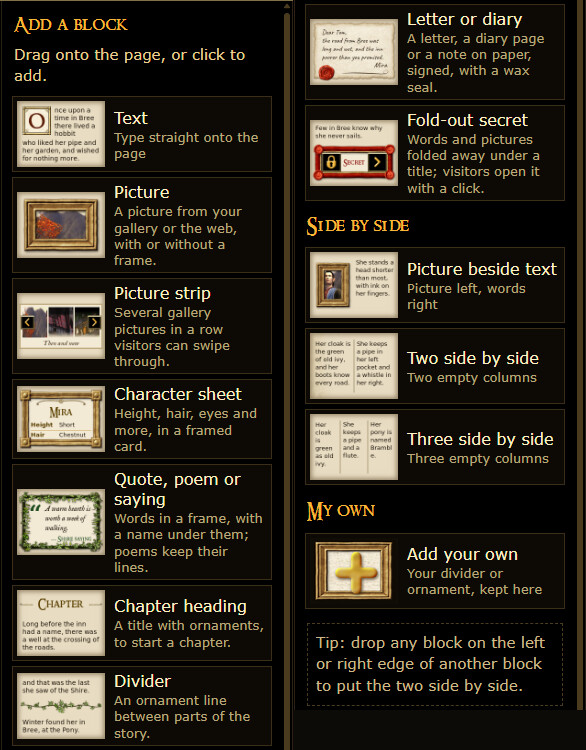
On the left is Add a block. Drag a block onto the page where you want it, or click it: it then goes under the block you chose, or at the end.
Text: type straight onto the page. Tick Start with a big first letter for a large painted first letter.
Picture: a picture from your gallery or the web, with or without a frame.
Picture strip: several gallery pictures in a row that visitors can swipe through.
Character sheet: height, hair, eyes and more, in a framed card.
Quote, poem or saying: words in a frame, with a name under them. Poems keep their lines.
Chapter heading: a title with ornaments, to start a chapter.
Divider: an ornament line between parts of the story.
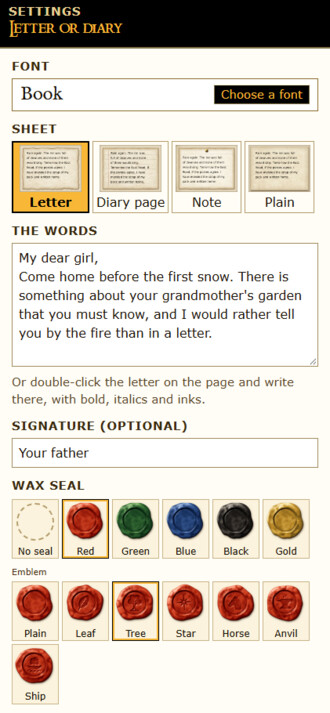
Letter or diary: a letter, a diary page or a note on paper, signed, with a wax seal in red, green, blue, black or gold, plain or with an emblem such as a leaf, a tree or a ship.
Fold-out secret: words and pictures folded away under a title. Visitors open it with a click.
Side by side: Picture beside text, Two side by side or Three side by side. You can also drop any block on the left or right edge of another block to put the two side by side, up to three in a row.
Changing a block
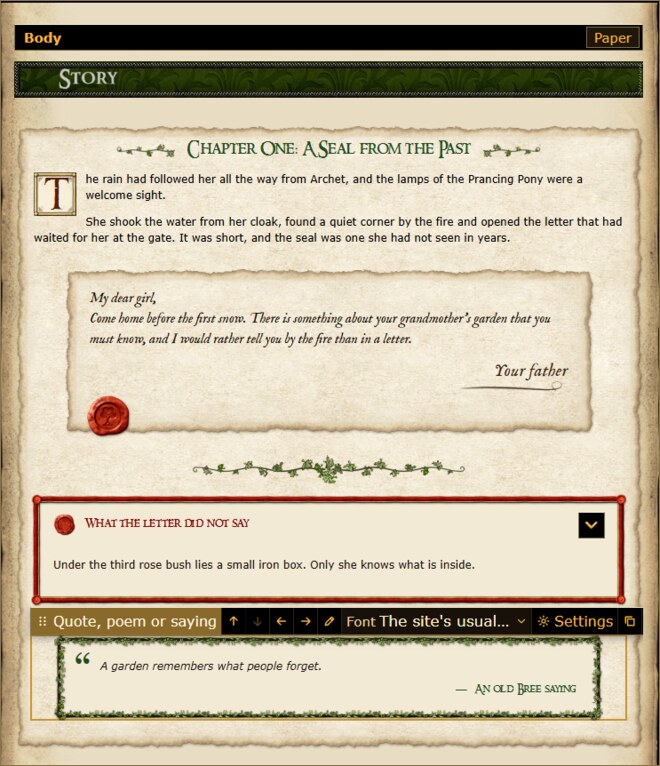
Click a block to choose it. A bar appears above it: drag its gold tab to move the block, or use the arrows. Font changes its letters, and Settings shows all its choices on the right, with Copy and Delete block at the bottom. Click a text on the page and type; double-click a heading, quote, character sheet, letter or caption to type in it. Undo and Redo in the top bar take a step back or forward.
Fonts and frames
Blocks can have a font of their own: press Font on the bar, or Choose a font in the settings, and pick a hand for letter writing, a font for reading or one for titles. Pictures, quotes, letters and secrets can have a frame from the site's painted art, such as Laurelin vines, Gold ring, Beaded gold, Wax seal or Dwarven iron, and under More frames one to match each of the profile looks. A chapter heading has ornaments to choose from in the same way.

Paper
Press Paper at the top of the page to choose the sheet your text is written on: The usual page (the page as it always is), Plain parchment, Aged letter, Diary ruled or Note card. The paper shows on the page itself; lists and previews show the text without it.
On your profile, press Look & paper in the top bar instead: there you choose your profile's look, and a paper for each section, Outward Appearance and Background.
Pictures
Bigger or smaller: click a picture and pull the small gold squares at its side. The text beside it makes room.
Check my pictures: press it in the top bar to see the pictures in your text that visitors no longer see, for example a picture that was removed or one kept on Photobucket, and pictures that slow your page down. Replace puts one of your gallery pictures, or another address, in its place.
My own: have a divider or ornament of your own? Under My own, press Add your own, choose the picture, give it a name, say whether it is a divider or an ornament and whether it was made with AI, and press Add to My own. It stays on your shelf (up to 40 pictures), ready for every page you build.
Saving and leaving
The gold Save button at the top right (Save adventure, Save profile and so on) saves your page. Nothing is lost when you leave: your work is kept as a draft, just as on the usual form. Back to the form takes you to the rest of the form (the title and the other boxes), with your text as you built it.
Visitors' view shows your page as visitors will see it, and Computer, Narrow and Phone show it at those widths.
Back to the usual text box
Press Classic editor in the top bar: your forms then open with the usual text box again, and you can come back with Story builder (Beta) at any time. On a form, a text laid out with the builder can also be changed in the text box: press Edit as text. The blocks show there as short lines in square brackets, such as [divider vines]; leave them as they are to keep the layout.
On a phone
The builder works on phones too: tap + Add to add a block, and tap a block to change it.