Phone app & notifications Tutorial
The Archives on your phone
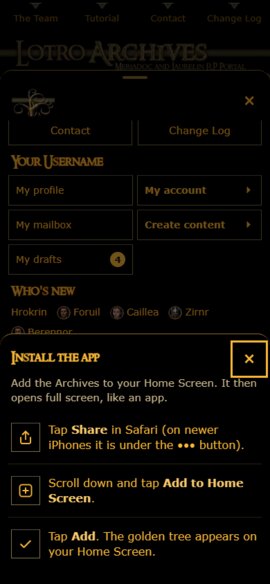
You can put the Archives on your phone's home screen. It then opens full screen like any other app, with the golden tree as its icon, and it can tell you about new things with push notifications.
Install the app
On iPhone: open the site in Safari, tap Menu, then Install app, and follow the three steps (Share, Add to Home Screen, Add).
On Android: open the site in Chrome, tap Menu, then Install app, and confirm. No Install app in the Menu? Use Chrome's own menu (the three dots) and choose Install app or Add to Home screen.
Turn on push notifications
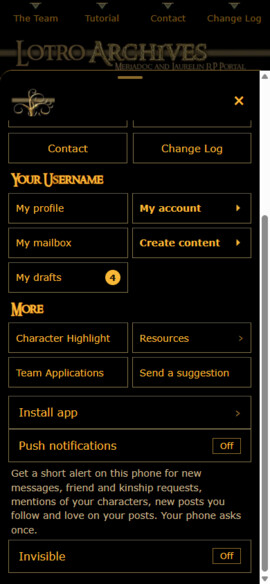
Push notifications let your phone or computer tell you about new private messages, friend requests, lanterns being lit and more, even when the site is closed. They are not e-mails: they appear on your phone or computer itself, and they never show what a message says, only who sent it.
On Android: tap Menu, then Push notifications, and allow it when your phone asks.
On iPhone: install the app first (see above, iOS 16.4 or newer), open it from your home screen, then tap Menu and Push notifications.
On a computer: go to My account, then Preferences, and under Notifications and e-mail press Turn on next to Push notifications on this device.
Choose which notifications you want under Notify me about in your Preferences. The Send a test notification button lets you check that your phone or computer really gets them.