Friends & following Tutorial
Friends and kinmembers
On the Archives you can link up with other members in two ways: as Friends, or as Kinmembers when you play in the same kinship. Both need a yes from the other member.
Sending a request
Open the other member's character profile and scroll to the bottom, or open their member page (View user page, at the bottom of their profile).
Press Become NAME's Friend, or Become NAME's Kinmember.
Press Send.
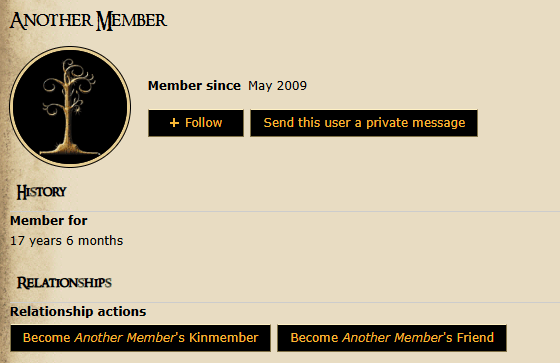
The other member gets a notification under the bell, and an e-mail too unless they turned those off. Your request waits under My relationships, on the tab Sent requests, where you can also cancel it.
Answering a request
When someone asks to be your friend or kinmember, the bell beside your name tells you, and "You have one pending relationship" shows at the top of the page. Go to My account, then My relationships, open the tab Received requests and press Approve or Decline.
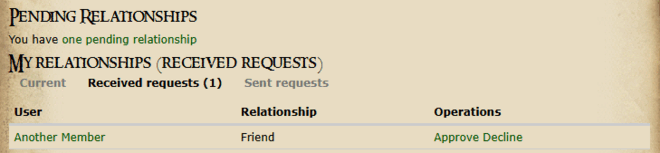
The tab Current lists your friends and kinmembers. To end a relationship, press Remove beside it.
Kinmember requests show who you play with. They don't put you on a kinship's page: for that, choose your kinship in the Kinship Link box of your character profile (see the Kinships tutorial).
Following
Follow members, characters, kinships and chronicles to keep up with their new posts. Following needs no yes, and nobody else can see who or what you follow.
Members: press Follow on their member page.
Characters, kinships and chronicles: press + Follow in the row of links at the bottom of the page.
It then says Following; press it again to stop following.
Everything comes together on your Following page (My account, then Following). Newest posts lists the newest adventures, chronicles, pictures and events from everything you follow, each with a line that says why it is there. The tabs People, Characters, Kinships and Chronicles list what you follow, each with a Following button to stop.
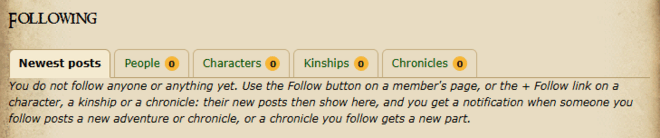
You can't follow yourself, or your own characters, kinships and chronicles.
Love and Loved things
Enjoyed a story, a chronicle or a picture? Press Love under it. The author sees how many members love their post, but never who, and nobody else sees a number. Press it again (Loved) to take your love back.
Everything you loved is gathered on Loved things (My account, then Loved things). Only you can see this list. Press Unlove to take something off it.
Friends Activity
Once you have friends, Friends Activity appears in the left column under your menu: the newest adventures, pictures and notice board posts of your friends from the last two weeks. Click its title to open or close it; it stays closed until you open it. Point at a title to see a short preview of the post. On phones you find it in the Menu. Rather not see it? Untick Show Friends Activity in your Preferences.
Who's online and Invisible
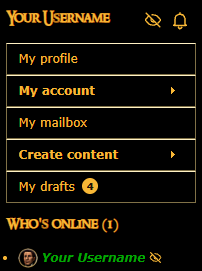
Who's online, in the left column (on phones: Menu, then Community), shows the members who are on the Archives right now, with how many beside the title, for example Who's online (12). It keeps itself up to date: members show up within half a minute and stay listed for 15 minutes after the last thing they did.
Want to hide away for a while, perhaps to work quietly on your drafts? Click the eye beside your notification bell (on phones: Invisible in the Menu), or tick Invisible under Privacy in your Preferences, and other members won't see you in Who's online. It is the same on all your devices, and while you are invisible your own name shows in italics with a small crossed-out eye. Click the eye again whenever you'd like to be seen.
Notifications
The gold bell beside your name at the top of your menu (on phones: on the Messages tab) shows how many new notifications you have. Click it to open your Notifications page. You get a notification when:
someone asks to be your friend or kinmember, or accepts your request;
someone you follow posts a new adventure or chronicle, or a chronicle you follow gets a new part;
someone loves your adventure, chronicle or picture (it says "Someone loved", never who);
and also for new private messages, when someone mentions one of your characters, and, if you tick it, when someone lights their lantern (see the Lanterns lit tutorial).
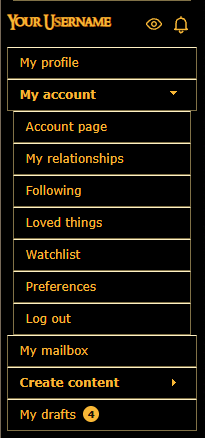
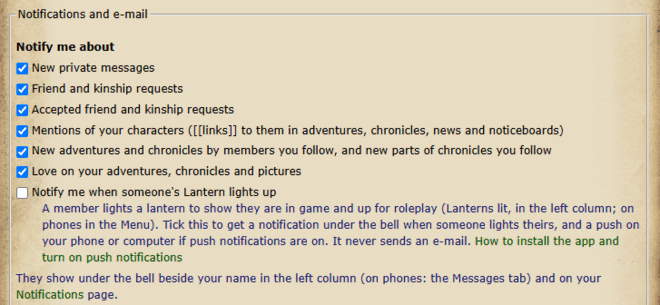
Choose which notifications you get in your Preferences (My account, then Preferences): tick or untick them under Notify me about and press Save. Further down is E-mail me about friend and kinship requests: while it is ticked, you also get an e-mail about them. Untick it if you'd rather not. To get your notifications on your phone or computer even while the site is closed, turn on push notifications (see the Phone app & notifications tutorial).