The Archives Plugin
What it does
The Archives Plugin brings the Archives into the Lord of the Rings Online. Target a character on Meriadoc who has a profile here, and you can read it right there in the game.
- The Archives button lights up when your target has an Archives profile.
- Click it to open their card: banner, details, appearance, background, relations and pictures.
- It works on Meriadoc. The profiles come from the Archives: press Update profiles on the Archives Plugin page now and then to get the newest.
Install it
You need a computer or laptop with LOTRO on it (not a phone), and Chrome or Edge.
- Open the Archives Plugin page on the computer where you play LOTRO.
- Click Install the plugin.
- A window opens. Go to Documents > The Lord of the Rings Online and click Select Folder.
- If your browser asks, click Allow (or Edit files).
- Wait until the page says Installed.
- Start LOTRO. In the chat box, type /plugins manager and press Enter.
- Tick LaurelinArchives and set it to load automatically.
- If the plugin asks Is this Meriadoc?, answer it.
- Target a character. When the Archives button lights up, click it.
- Want the button somewhere else? Drag it anywhere on your screen with the mouse. It stays there, also next time.
Firefox or Safari: download it
Firefox and Safari can't put files into your LOTRO folder, so there's no Install or Update button for them. You download the plugin and unzip it into your Plugins folder yourself:
- On the Archives Plugin page, click Download the plugin.
- Unzip it into Documents > The Lord of the Rings Online > Plugins (create Plugins if it is not there), so that you get Plugins > LaurelinArchives. On Windows: right-click the file, choose Extract All, click Browse, pick that Plugins folder, and check that the path ends in \Plugins: remove \laurelin-archives if Windows put it at the end.
- In LOTRO, type /plugins manager, tick LaurelinArchives and set it to load automatically.
To update: download the plugin again and unzip it into the same Plugins folder, over the old one (choose Replace the files). Then, in game, type /plugins unload LaurelinArchives and then /plugins load LaurelinArchives (or log in again).
Or use one click: open the Archives Plugin page in Microsoft Edge (it comes with Windows) or Google Chrome. There, Install the plugin and Update profiles do it all. Unzipped the download already? Install then only fetches what has changed since.
Get the newest profiles
- Come back to the Archives Plugin page now and then.
- Click Update profiles. The page tells you when an update is waiting.
- If your browser asks, click Allow.
- Then, in game, type /plugins unload LaurelinArchives and then /plugins load LaurelinArchives (or log in again). The game reads the profiles only when the plugin starts.
Walkthrough with pictures
Khalis is the example all the way through.
On the Archives Plugin page, click Install the plugin. In the window that opens, go to Documents > The Lord of the Rings Online and click Select Folder.

When it says Installed, the plugin and the profiles are in your game folder.

In LOTRO, type /plugins manager, tick LaurelinArchives and set it to load automatically.

If it asks Is this Meriadoc?, click Yes on Meriadoc and No on any other server. It only asks when it cannot tell by itself.
The Archives button. A ? means your target has no profile on the Archives. Drag it anywhere on your screen: it stays where you put it.

Target Khalis: the button shows his picture. Click it.

His card opens on Details: who he is, at a glance.

Appearance, with the pictures from his profile.
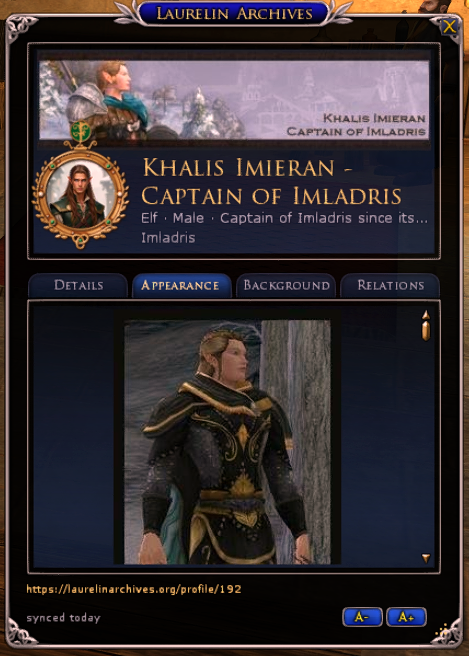
Background: his story.

Relations: friends, family and rivals. Gold names are other characters: click one to open their card, and < Back to return.

Help
It says LOTRO's folder isn't here. The game folder is usually Documents > The Lord of the Rings Online. In the window, go to that folder and click Select Folder.
I use OneDrive. Then your Documents may be in OneDrive > Documents. Look for The Lord of the Rings Online there and pick it.
LaurelinArchives is not in /plugins manager. Check that the page said Installed. Then close LOTRO completely and start it again. The plugin lives in Documents > The Lord of the Rings Online > Plugins > LaurelinArchives.
Unzipped the download yourself? If it isn't in /plugins manager, or it shows an error when loading, check the folder: it must be ...\Plugins\LaurelinArchives\Card.plugin. If Windows put it in ...\Plugins\laurelin-archives\LaurelinArchives, move the LaurelinArchives folder up one level into Plugins and delete the empty laurelin-archives folder. The plugin only works from Plugins > LaurelinArchives.
Why does it ask "Is this Meriadoc?" The plugin shows profiles on Meriadoc only. Usually it knows which server you are on; when it cannot tell, it asks once. Answer Yes on Meriadoc, No on other servers.
Can I move the Archives button? Yes. Press it with the left mouse button and drag it anywhere on your screen. It stays there, also the next time you play. A click opens the card; a right-click shows a small menu. Lost it, or want it back where it started? Type /archives reset in the chat: the button and the cards go back to their usual places and sizes.
Can I make the card bigger or smaller? Yes. The full card opens at 125%, the size of LOTRO's character panel. Drag its corner to zoom, or its edges to change the width and height. /archives reset brings back the usual size.
How do I open a card? Click the Archives button while you target someone. Or type /archives target. To use a key instead, type /archives hotkey.
My own character is not in it. The plugin shows what your public profile page shows. The Archives update the profiles every quarter of an hour; then click Update profiles.