The Hearken Plugin
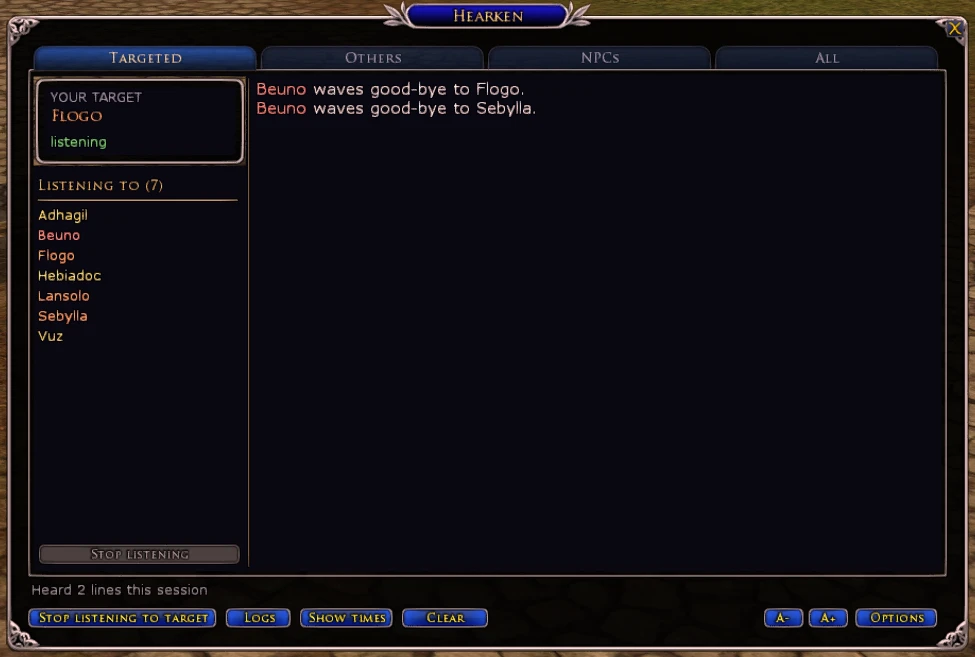
Busy inns move fast. Hearken gathers the chat around you and sorts it into tabs, so you can follow the people you're roleplaying with, see what someone said before you even clicked on them, and not miss it when someone says your name.
- Targeted, Others, NPCs and All tabs, a Listening list for the characters you choose, and a small Snooper window that shows only your current target.
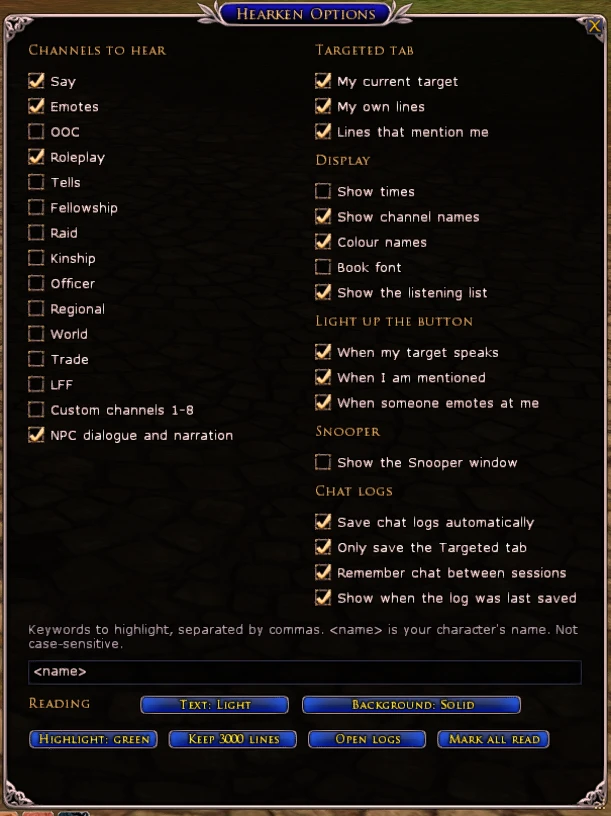
- Your name and your own keywords are highlighted, and the Hearken button lights up and counts new lines when someone addresses you or emotes at you.
- Give each person their own colour: right-click a name under Listening to.
- Select and copy text just like the game chat. Recent chat comes back after you log in, and every session is saved as a log you can open later.
Use a computer for this
Installing needs a computer or laptop with LOTRO on it. Open this page there: laurelinarchives.org/plugins/hearken
A window opens. Go to Documents > The Lord of the Rings Online and click Select Folder.
An update is waiting: click Update Hearken.
Everything is up to date.
Installed.
In LOTRO, type /plugins manager, find Hearken in the list and press Load (or type /plugins load Hearken). Tick it to load automatically if you like. A window and a small square button appear: left-click the button to show or hide the window.
In game, type /plugins unload Hearken and then /plugins load Hearken (or log in again) to use the new version. Your settings, remembered chat and logs stay.
This browser can't put files into your LOTRO folder, so there's no Install or Update button here.
In this browser, you download the plugin and unzip it into your Plugins folder yourself (the steps are below).
Download the plugin 0.1 MBorOpen this page in Microsoft Edge
Microsoft Edge comes with Windows: there, one click installs the plugin, and Update Hearken gets the newest. If this browser asks whether to open Microsoft Edge, say yes.
Or open this page in Google Chrome: there, one click installs the plugin, and Update Hearken gets the newest.
Install it from the download:
- Unzip it into Documents > The Lord of the Rings Online > Plugins (no Plugins folder there? Create it), so that you get Plugins > Hearken. On Windows: right-click the file, choose Extract All, click Browse, pick that Plugins folder, and check that the path ends in \Plugins: remove \hearken if Windows put it at the end.
- In LOTRO, type /plugins manager, find Hearken in the list and press Load. Tick it to load automatically if you like.
- Left-click the small square Hearken button to show or hide the window; right-click it for a menu.
To update: download the plugin again and unzip it into the same Plugins folder, over the old one (choose Replace the files). Then, in game, type /plugins unload Hearken and then /plugins load Hearken (or log in again).
Unzipped the download and moving to Edge or Chrome later? Its Install Hearken then only fetches what has changed since.
Click a picture to see it full size.
Install it the first time
- Open this page on the computer where you play LOTRO, in Chrome or Edge.
- Click Install Hearken.
- If a window opens, go to Documents > The Lord of the Rings Online and click Select Folder. Installed another plugin from this site before? Then Hearken goes into the same folder without asking.
- If your browser asks, click Allow (or Edit files).
- Wait until the page says Installed.
- Start LOTRO. In the chat box, type /plugins manager, find Hearken in the list and press Load (or type /plugins load Hearken). Tick it to load automatically if you like.
- A window and a small square button appear. Left-click the button to show or hide the window; right-click it for a menu.
- Target someone and press Listen to target to add them to your Listening list.
- Type /hearken to show or hide the window. /hearken help lists every command.
Hearken asks nothing the first time and works on every server.
Get the newest version
- Come back to this page now and then. When it says an update is waiting, click Update Hearken.
- If your browser asks, click Allow.
- Then, in game, type /plugins unload Hearken and then /plugins load Hearken (or log in again). Your settings, remembered chat and logs stay.
Help
Why doesn't Hearken play a sound?
LOTRO plugins can't play sounds. Instead the button blinks, lights up and shows a count of new lines.
Where are my chat logs?
In Documents > The Lord of the Rings Online > PluginData > your account > server > character, named Hearken_Log_date_time. Or press Logs in the Hearken window, pick a session, then Select all and Ctrl+C to paste it anywhere.
Someone ends up under Others but is an NPC.
Right-click their line and choose to treat them as an NPC, or type /hearken npc and their name.
How do I stop listening to someone?
Click their name in the Listening list, then press Stop listening. Or target them and press Stop listening to target.
Can I give someone a colour?
Right-click their name under Listening to and pick one of ten colours. They keep it in every tab, even if you stop listening and add them again later.
Can I quieten a busy tab?
Right-click the tab: Mute this tab, Light up the button for new lines, Mark this tab read, or Clear this tab.
How do I empty the window?
Press Clear, then Clear all?. The saved logs keep everything; Logs opens them.
Can I change the order of the tabs?
Right-click a tab and move it left, right or to the start.
The text is too small.
Use A- and A+ in the window, type /hearken size 150, or drag the gold dots in the Options window's corner. The button's corner resizes the button.
Does Hearken send my chat anywhere?
No. It only reads the chat your own game already shows you, and everything stays on your computer.
Does the Laurelin Archives see what I save in the plugin?
No. Everything the plugin saves stays on your own computer. LOTRO plugins can't go online, so the Laurelin Archives never receives anything you save or share within them.
Should I back up what I saved?
Yes, now and then. What the plugins save is kept in Documents > The Lord of the Rings Online > PluginData. Copy that folder somewhere safe from time to time, or take screenshots of what matters to you. If it is deleted, or you move to a new computer without it, what you saved is gone: the Laurelin Archives can't bring it back and can't be held responsible for lost data. Installing or updating from this page never touches that folder.
Can I install it on my phone?
No. Installing needs a computer or laptop with LOTRO on it. You can read this page on your phone, though.